
Airport Editor 1.11
Design your own airport on the map, test fly it, and share it. Rebuilt in 1.11 with many more tools.
Opening it
Main menu → Airport editor. The editor home shows your airports and the ways to start a new one:
- Start from a layout 1.11: Single runway (the classic), Parallel runways (land on one, depart from the other), Crossing runways, or Big hub (three runways, four stacks).
- Copy an existing airport: pick any built-in or installed airport and press Copy & edit. A great way to start: tweak Heathrow, or learn how a real airport is put together.
Each of your airports has buttons to Edit, Test fly, Duplicate 1.11, Export and Delete. Your airports also appear on the main menu with the built-in ones.
The workspace
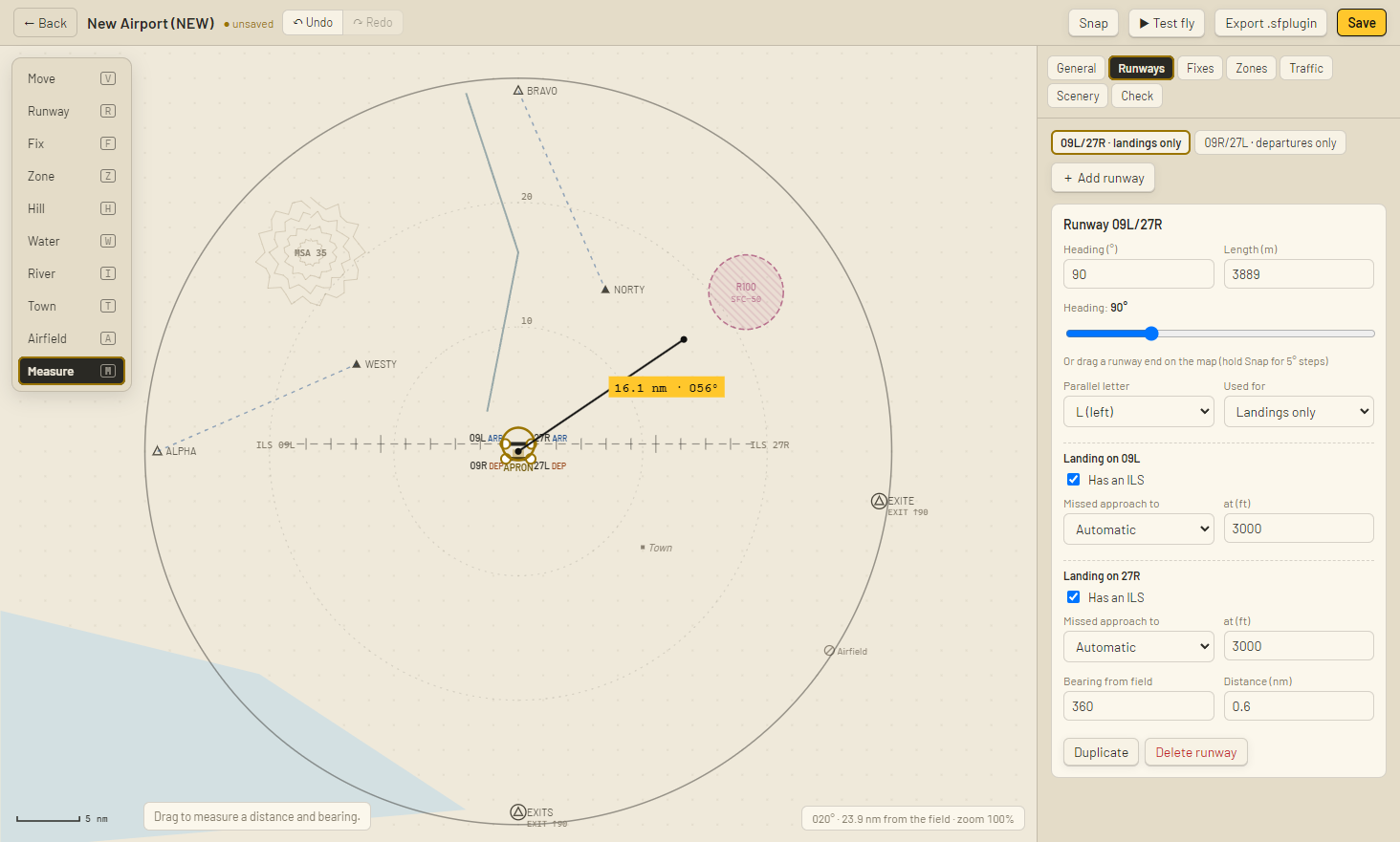
- Top bar
- ← Back, the airport's name (with
● unsavedwhen there are changes), Undo / Redo, Snap, ▶ Test fly, Export .sfplugin and Save. - Tool rail
- On the left of the map: the tools below, each with its shortcut key.
- Map
- Your airport, drawn exactly as the game will draw it (on the paper chart theme). Scroll to zoom, drag empty space to pan, double-click empty space to fit the whole airspace.
- Status bar
- Bottom right: the bearing and distance from the field to your cursor, the zoom level, and whether snap is on.
- Side panel
- Tabs: General, Runways, Fixes, Zones, Traffic, Scenery, Check. See the Editor reference.
- Problems bar
- At the bottom of the side panel, if something needs fixing before you can save. Click it to see them all.
Tools
| Tool | Key | What it does |
|---|---|---|
| Move | V | Select and drag things. Drag a runway's middle to move it, or either end to turn and stretch it. |
| Runway | R | Click to place a runway (up to 6). |
| Fix | F | Click to place a fix. Placed near the edge, it becomes an entry point fed into the nearest holding fix; anywhere else, a holding fix. |
| Zone 1.11 | Z | Click to place a restricted area. |
| Hill | H | Click to place high ground. The game works out its safe altitude. |
| Water 1.11 | W | Click point by point to draw a lake or coastline. Click the first point, double-click, or press Enter to finish. At least 3 points. |
| River 1.11 | I | Click point by point along a river. Double-click or press Enter to finish. At least 2 points. |
| Town | T | Click to place a town name. |
| Airfield 1.11 | A | Click to place a neighbouring airfield (scenery). |
| Measure 1.11 | M | Drag to measure a distance and bearing. |
After placing something, the editor switches back to Move and selects it, ready to adjust.
Reshaping water and rivers
Select a lake, coastline or river and its points appear as small squares:
- Drag a point to move it.
- Right-click a point to remove it.
- Right-click on the line between two points to add one there.
- The Size slider grows or shrinks the whole shape.
The apron
The APRON square is where departures start and arrivals park when ground control is on. By default it's worked out for you (shown faded). Drag it to place it yourself; General → Put it back automatically undoes that.
Snap and precision
- Snap (G) puts everything on a 0.5 nm grid and shows the grid on the map. Runway ends turn in 5° steps instead of 1°.
- Arrow keys nudge the selection by 0.1 nm (0.5 nm with snap on); hold Shift for 1 nm.
- Every item's panel has Bearing from field and Distance boxes to type an exact position.
- Runways take an exact heading (1°) and length in metres.
Keyboard shortcuts
| Key | Action |
|---|---|
| Ctrl Z | Undo (up to 100 steps) |
| Ctrl Y or Ctrl Shift Z | Redo |
| Ctrl D | Duplicate the selection (placed 1.5 nm away) |
| Ctrl S | Save |
| Delete / Backspace | Delete the selection |
| Esc | Deselect, cancel drawing, back to Move |
| Enter | Finish drawing water or a river |
| Arrow keys | Nudge (Shift = 1 nm) |
| G | Snap on / off |
| V R F Z H W I T A M | Tools |
Saving, testing and sharing
- Save checks the airport first. If anything's wrong, it opens the Check tab with the list of problems.
- ▶ Test fly saves and starts a relaxed shift at your airport. Go back to the editor from the main menu.
- Export .sfplugin saves the airport as a plugin file you can send to anyone. See Plugins.
- Leaving with unsaved changes asks whether to save, discard or stay.